Access Tokens
Generate and copy access tokens
Access tokens are used to access ExamDeveloper APIs that allow managers to generate real-time data from their projects and load it into custom reports or dashboards. For example, managers can configure spreadsheets with custom analysis in Microsoft Excel or dashboards in Microsoft Power BI to present data in a way that is meaningful to them. This provides quick access to the most recent data from a project without logging in to ExamDeveloper.
Generate a new token
|
However, you must generate a new token every 90 days regardless of your current token's expiration date or status. |

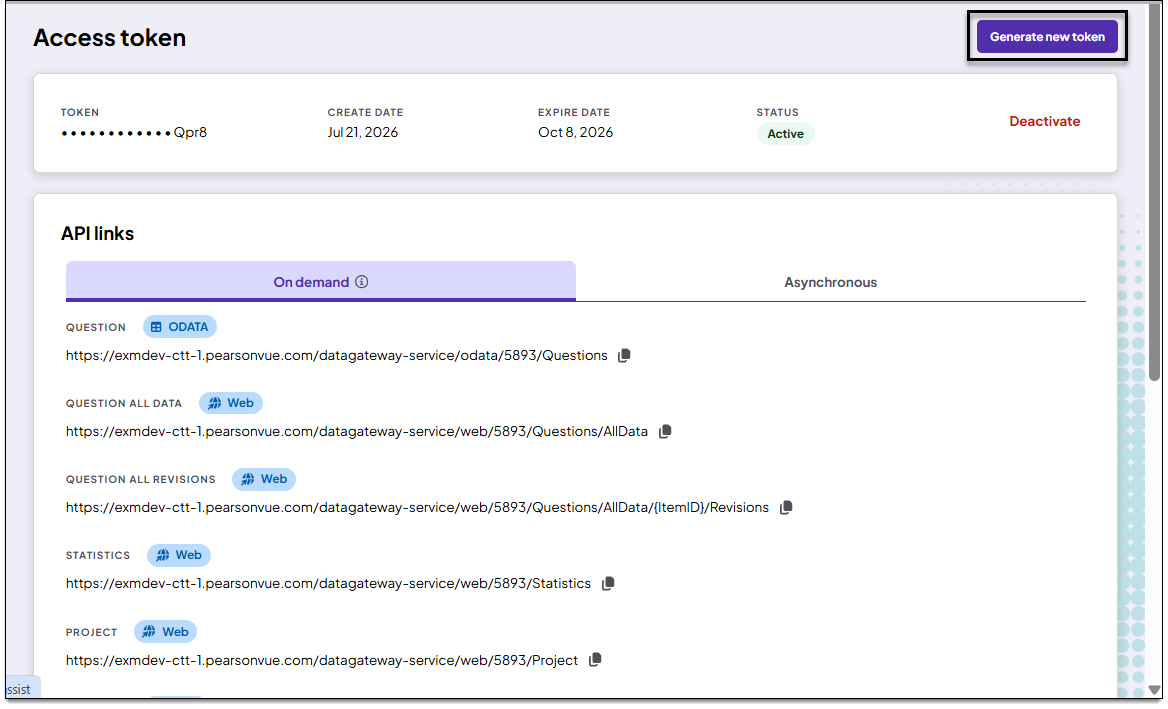
- On the Access token page, click Generate new token in the upper-right corner of the page.
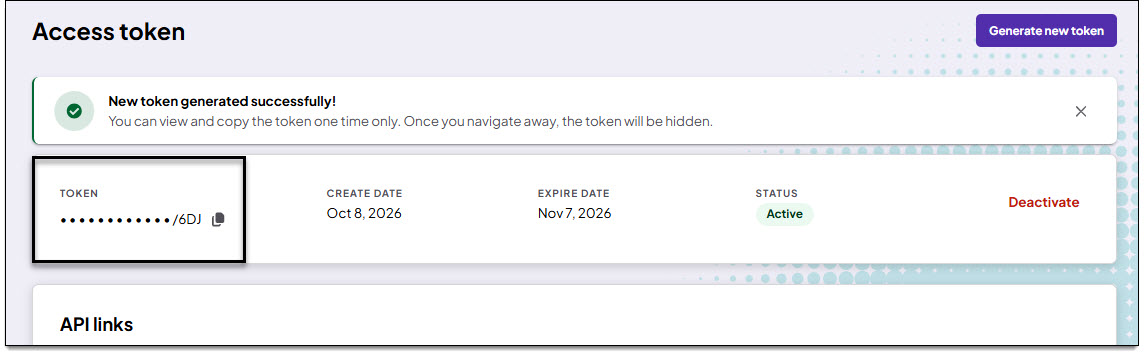
- A success message is shown at the top of the page and the token is displayed in the Access token section.
Copy the access token
|
|
- From ExamDeveloper, go to Manage > Users > Access Token.
- The Access tokens page opens in a new browser tab or window.
- The token is shown at the top of the page. When you are ready to use the token, click
 next to the token.
- Follow the steps on this page for information about connecting OData in Microsoft Excel.
Deactivate your current token
|
|
- From the Access Token page, click Deactivate.
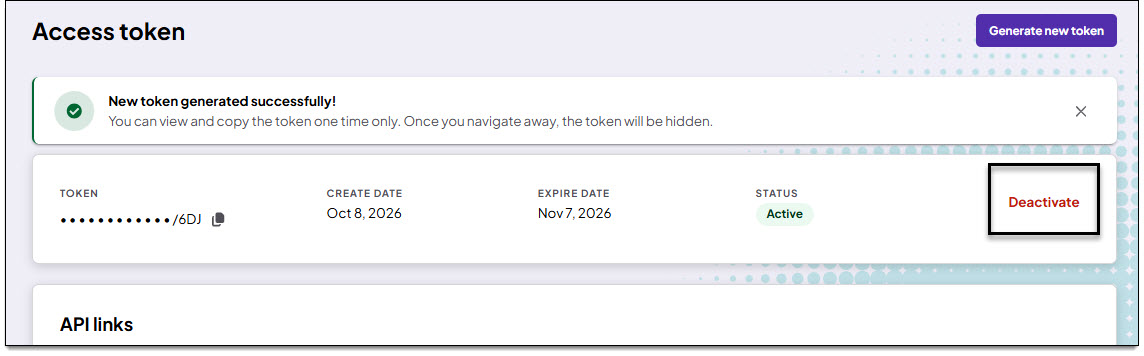
- The token status will now show as "Deactivated".
- If you attempt to refresh the data in your external report or dashboard, you will get an error. You must generate a new token before you can refresh the data again.